Guides & how-tos

Full-page screenshot guides for Chrome

Capture whole web pages on Mac, Windows and Chromebook, save them as images or PDF, annotate them and hide private details before you share.

Featured Guide•Tutorials

How to Take a Full-Page Scrolling Screenshot in Chrome (2026 Guide)

Chrome has no Full Page button, but there are three reliable ways to capture an entire scrolling page: an extension, the hidden DevTools command, and Edge’s Web Capture. Here’s how each works and how to fix repeated headers, missing images and cut-off pages.

Key finding

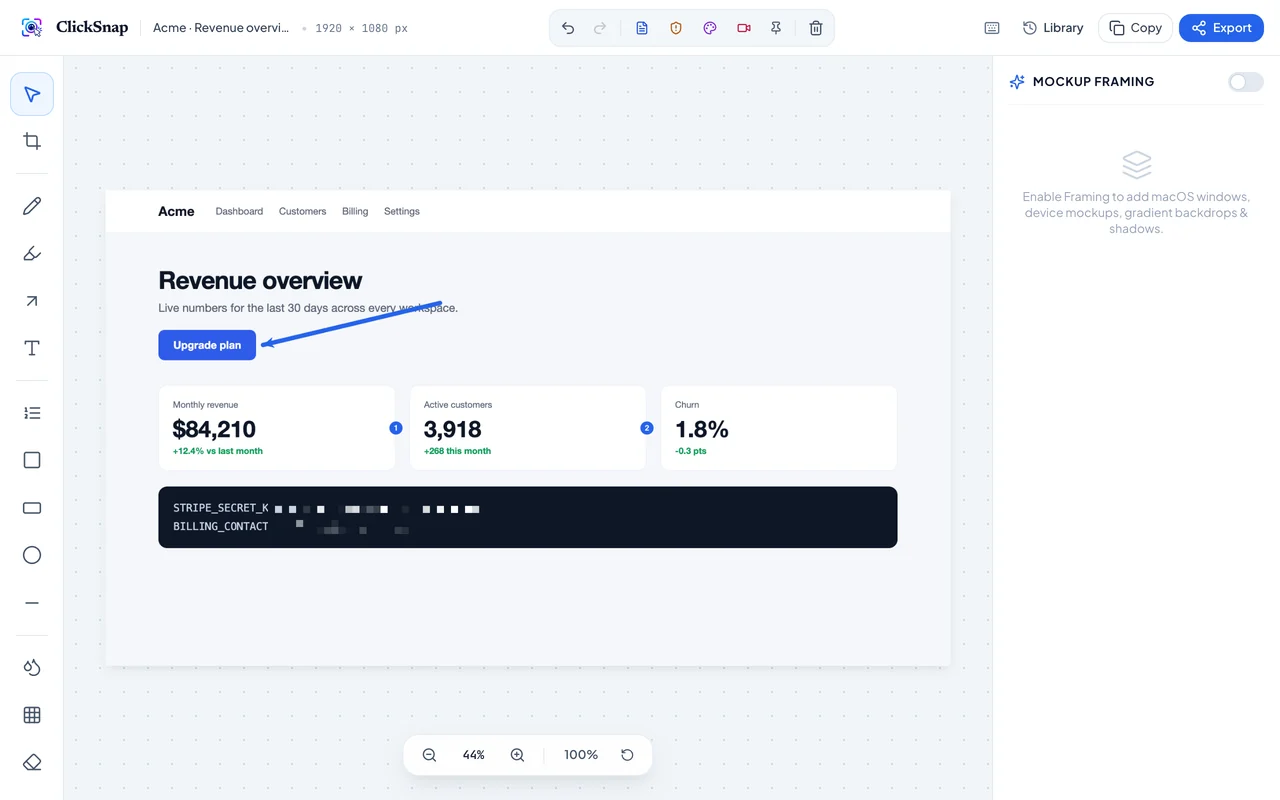
To take a full-page scrolling screenshot in Chrome, install a full-page screenshot extension such as ClickSnap and press Alt+Shift+F (Option+Shift+F on a Mac); it scrolls the page, stitches it into one image and shows sticky headers only once. Without an extension, open DevTools, press Ctrl+Shift+P (Cmd+Shift+P on a Mac) and run “Capture full size screenshot”.

Sarangan Raviraj
Sarangan Raviraj
February 22, 2026 • 8 min read
Read
How to Take a Full-Page Scrolling Screenshot in Chrome (2026 Guide)

Latest Articles & Benchmarks (17)

100% Technical Accuracy

Stay updated with Chrome & Web Canvas

Get monthly deep dives on browser extensions, memory optimization, and visual tools. Zero spam.